5. SolidPing VNC checks: handshake, login and desktop screenshot
DocumentationThe VNC check speaks the real RFB protocol: it reads the banner, negotiates a version and lists the authentication methods the server offers. A server that offers no authentication is marked down by default, because an open desktop is almost always a mistake.
In this video you run a handshake only check, then add a password so the check logs in and reports the desktop name and size, and finally turn on the screenshot option to attach a picture of the desktop to the result.
Steps
Create a VNC check
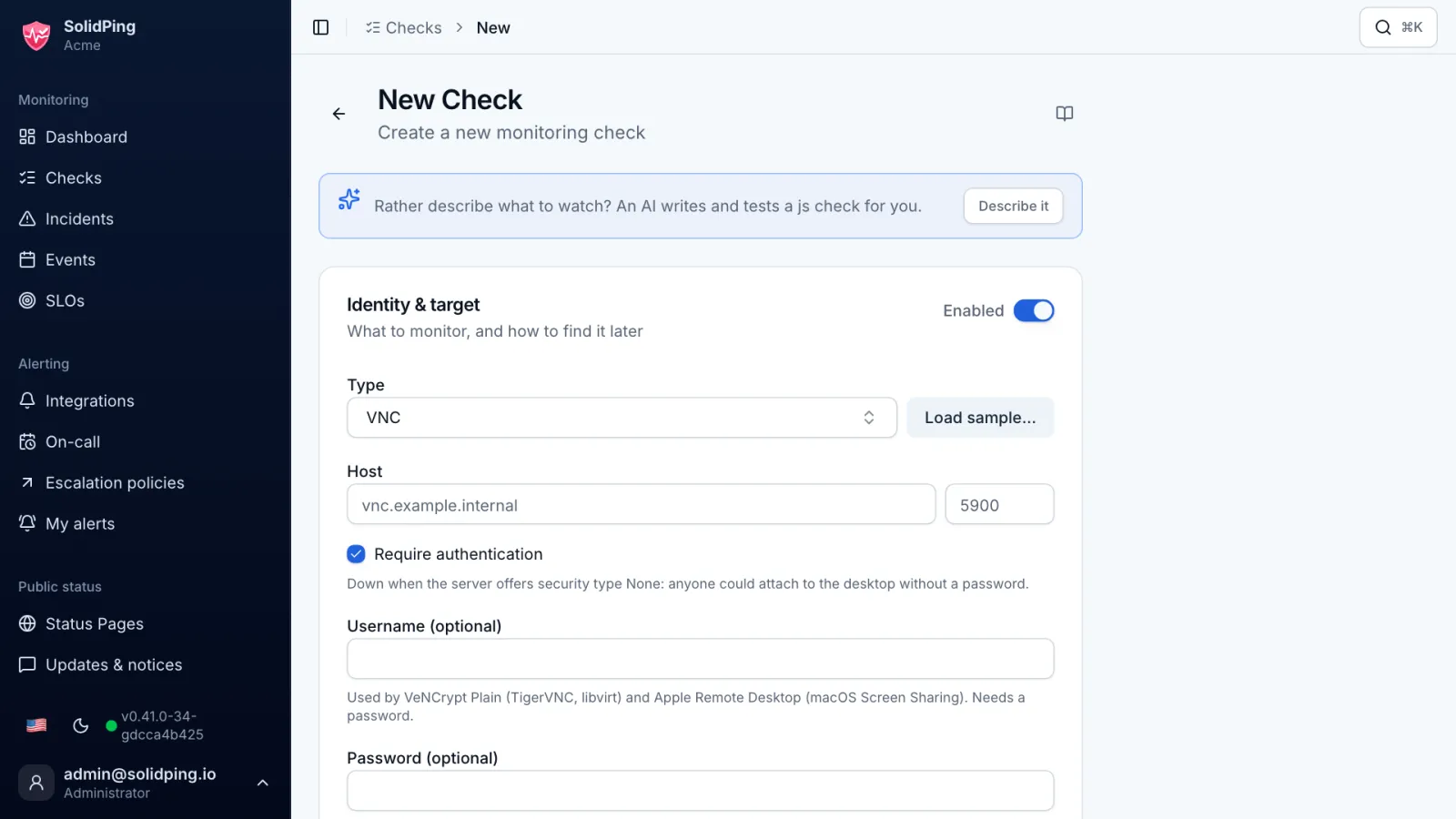
Click New Check and choose the VNC type. It speaks the real protocol: it reads the server banner, negotiates a version and lists the authentication methods offered.
Run without a password
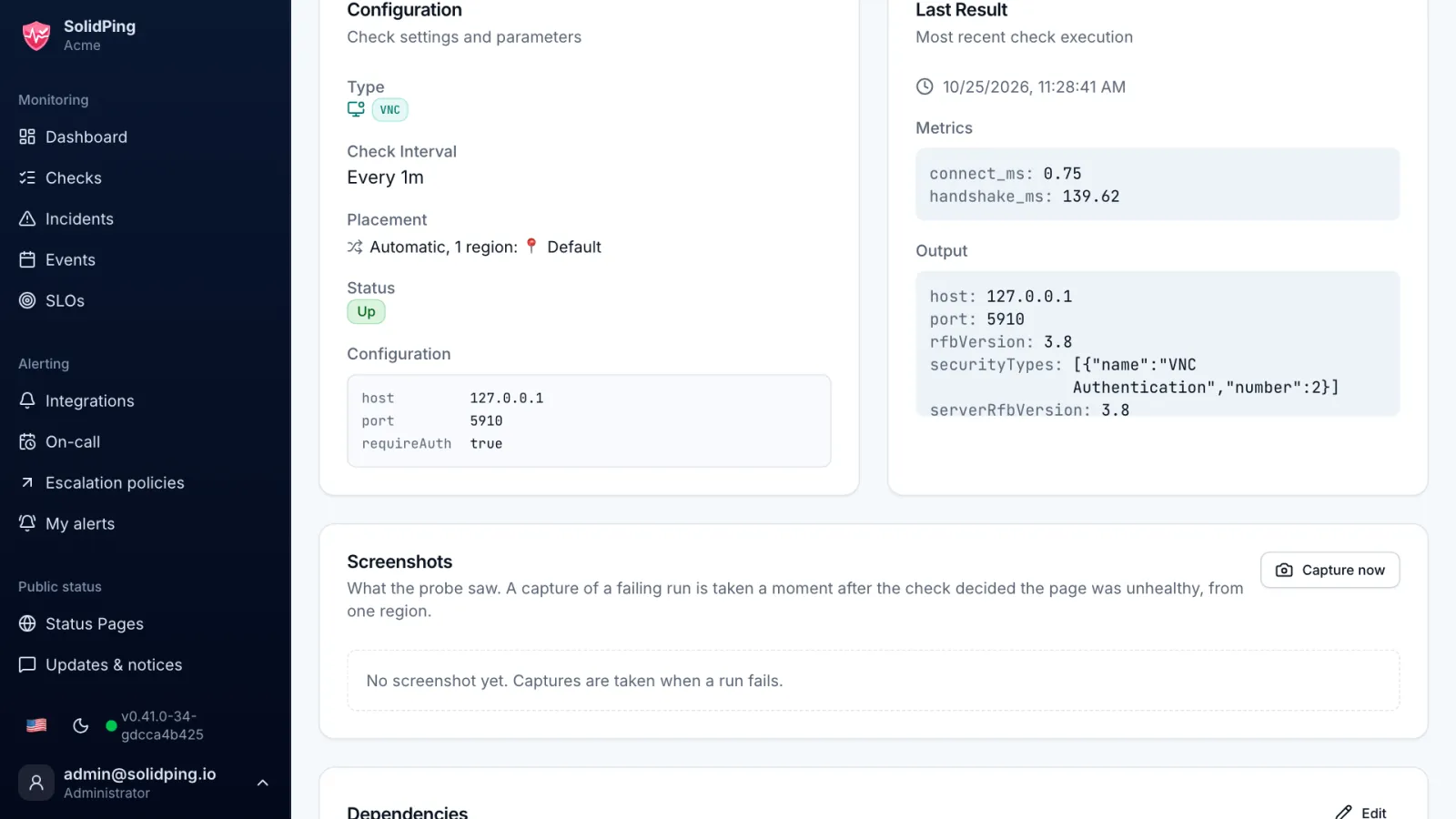
Enter the host and port 5900, leave the password empty and click Run now. The result shows the protocol version and the security types offered.
Spot an open desktop
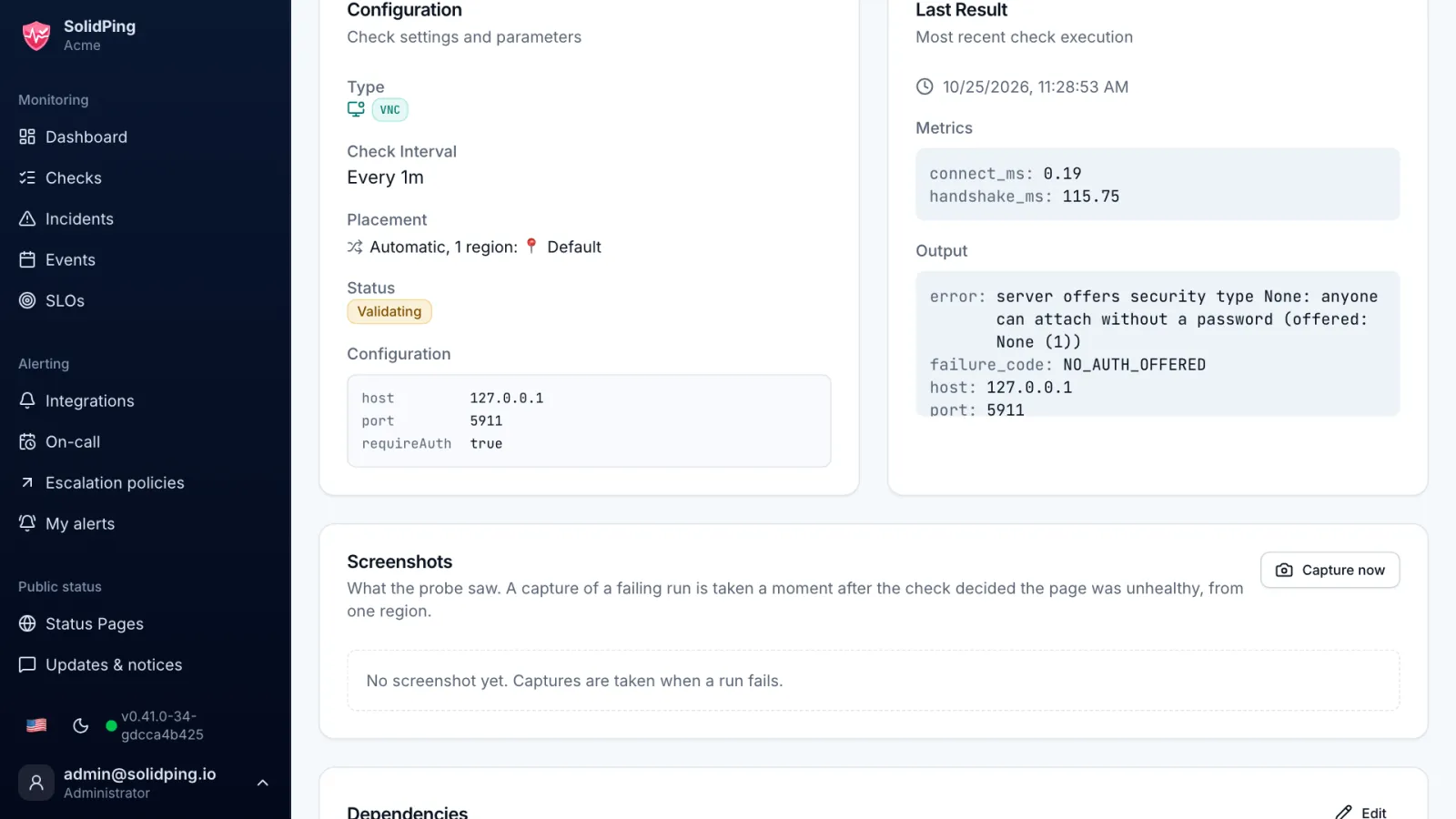
If a server offers no authentication at all, the check goes down by default. A desktop that anyone can attach to is almost always a mistake.
Log in with a password
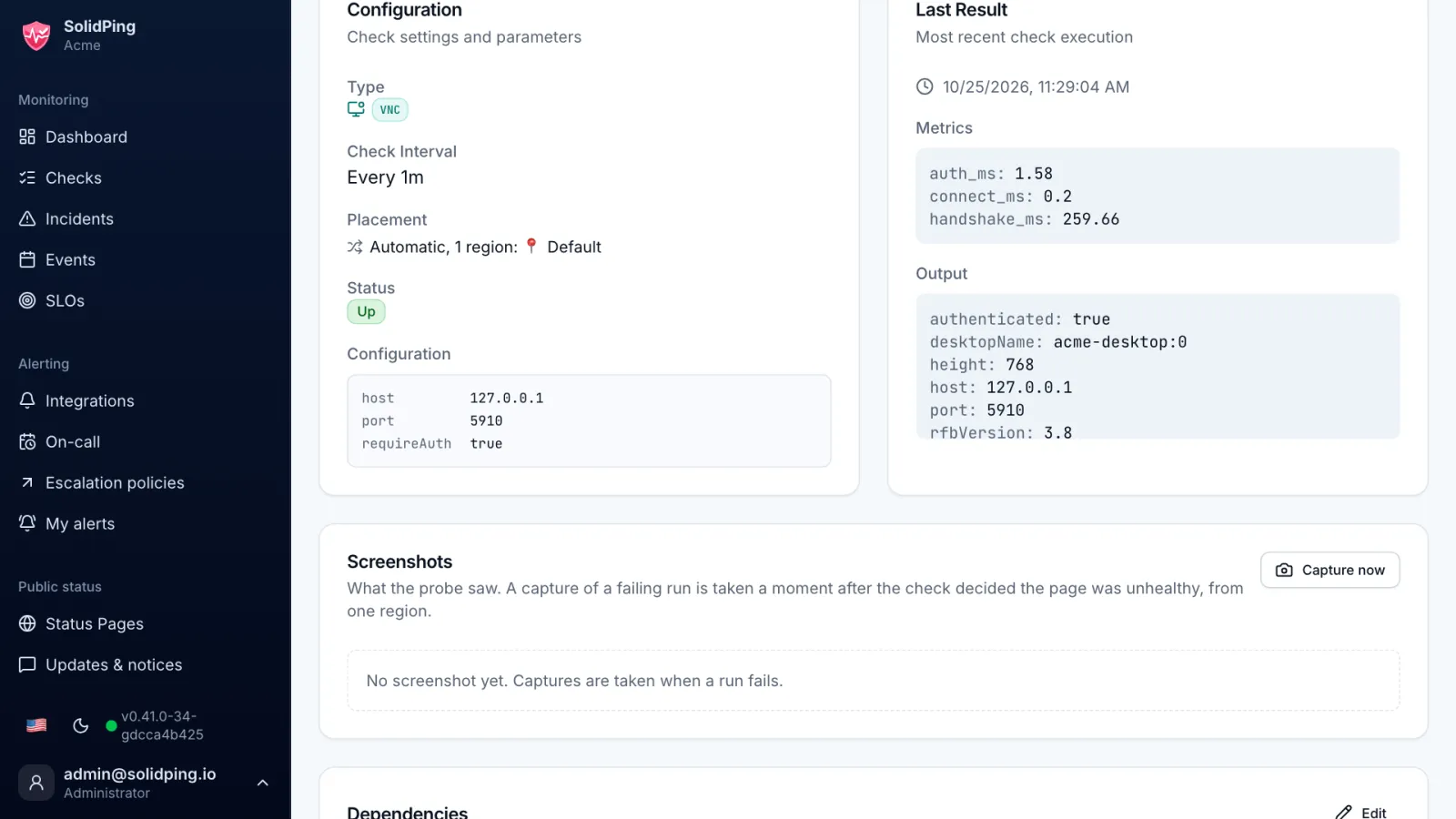
Add the password and run again. The check logs in with the strongest method both sides support, then reports the desktop name and size.
Capture the desktop
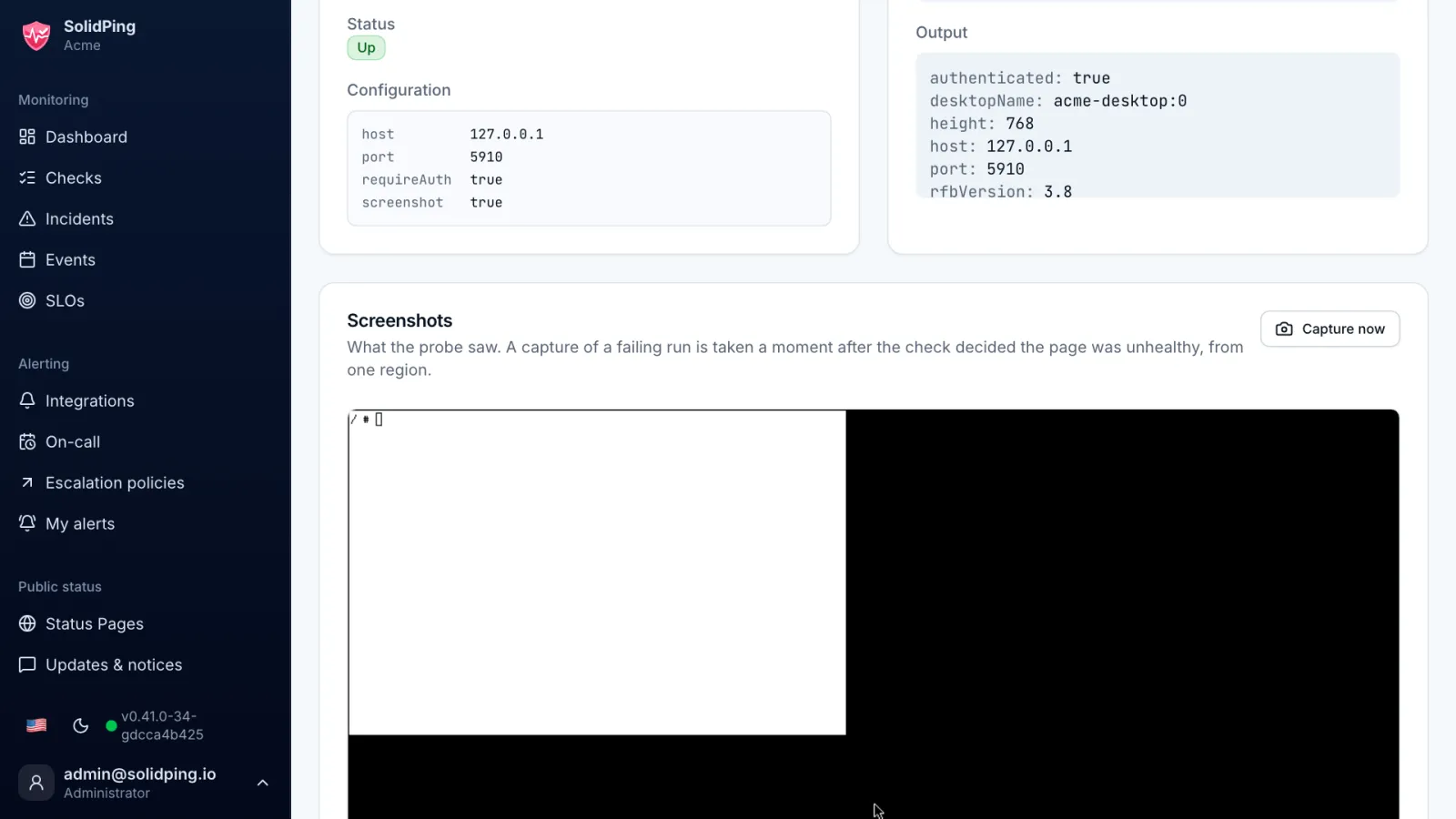
Turn on Capture a screenshot of the desktop after logging in, and run again. SolidPing attaches the picture to the result, which helps when a kiosk or lab machine shows a frozen screen.
Run it as often as you need
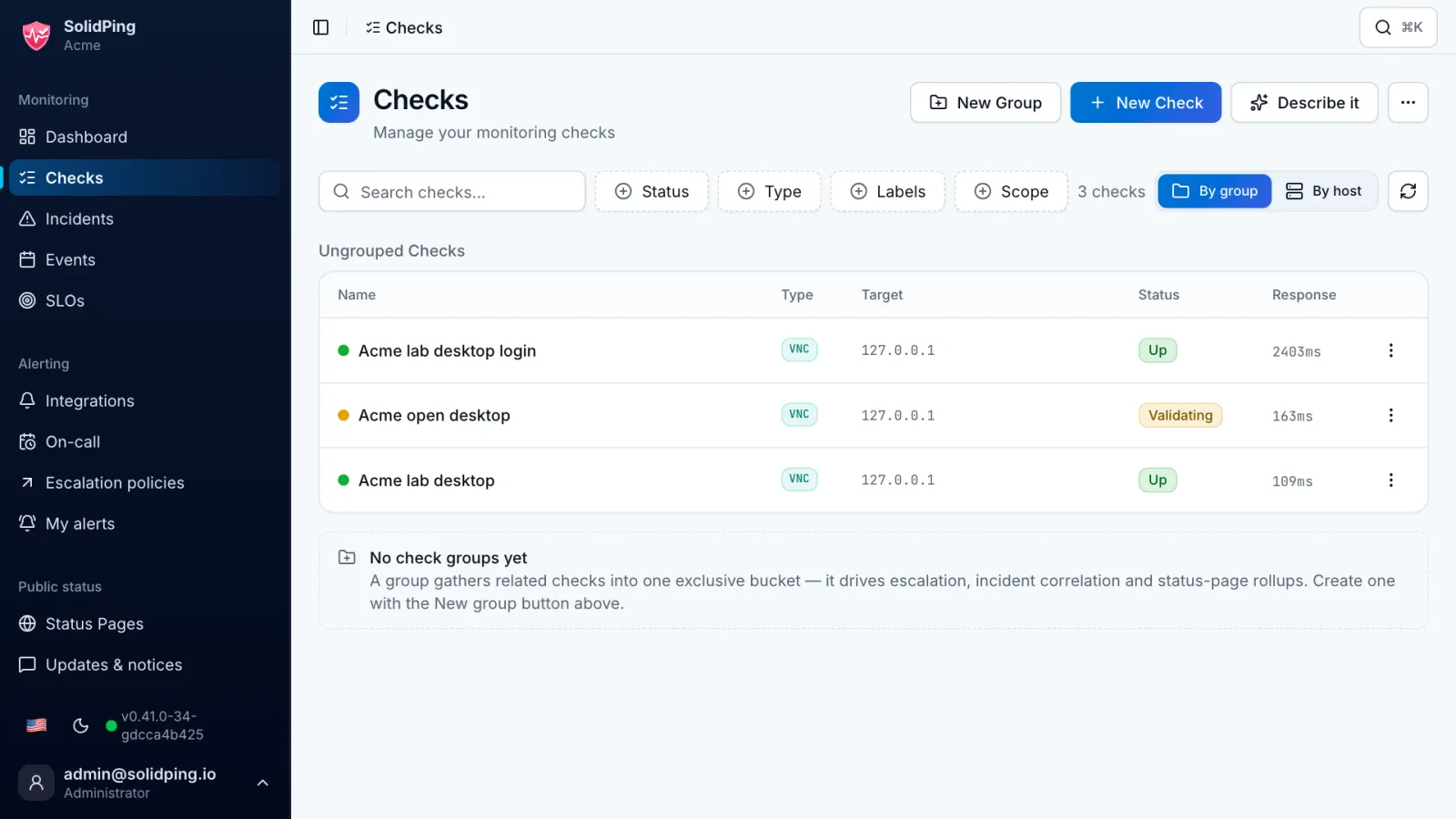
Attaching to a VNC console has no logon side effects, so the check can run as often as you need.