9. SolidPing status pages: sections, components and incidents
DocumentationA status page tells your customers what is happening so they stop asking you.
In this video you create a status page, organize it in sections, add components, and switch a section to automatic membership (all checks, by label or by group) so new checks appear without manual work. You then open the public page, see it react when a check fails, and post an incident update.
Note that automatic inclusion on a public page is a disclosure decision: only turn it on for sections you are happy to publish.
Steps
Create a status page
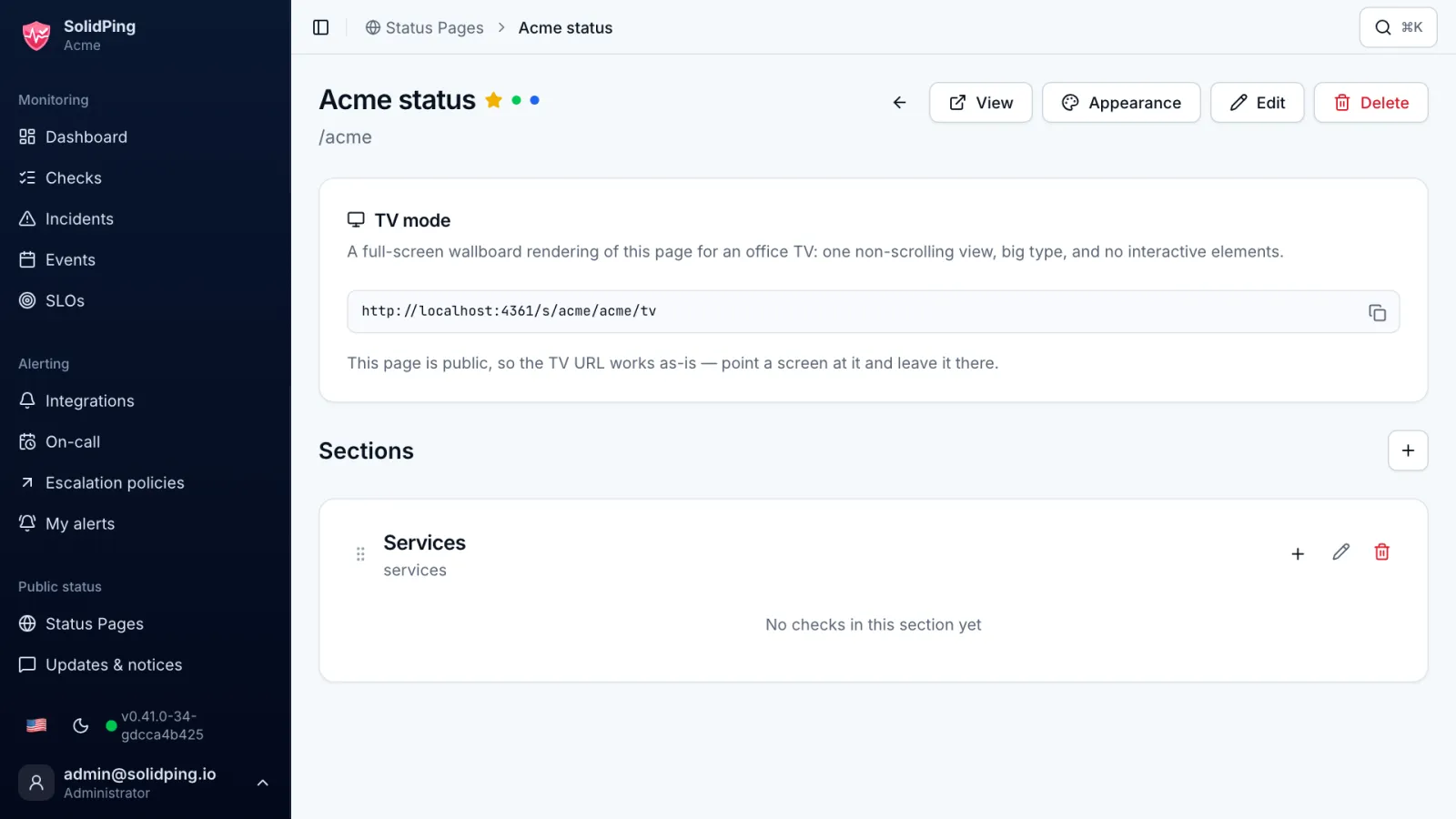
On the Status Pages page, click New Status Page and give it a name and a slug. It tells your customers what is going on, so they stop asking you.
Add a section
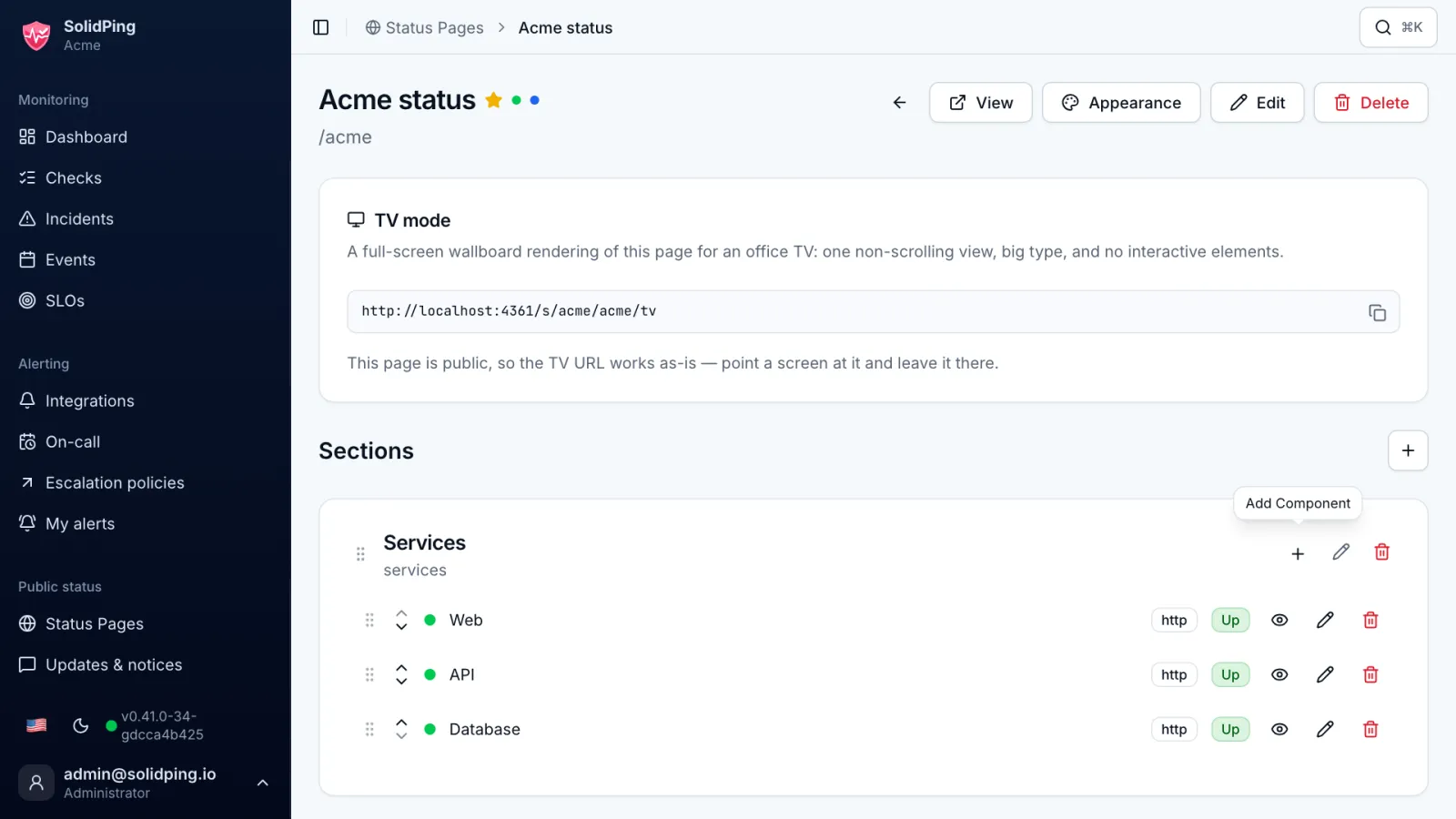
Click Add Section and keep the Manual membership. Add components one by one: each component is one of your checks.
Switch to automatic membership
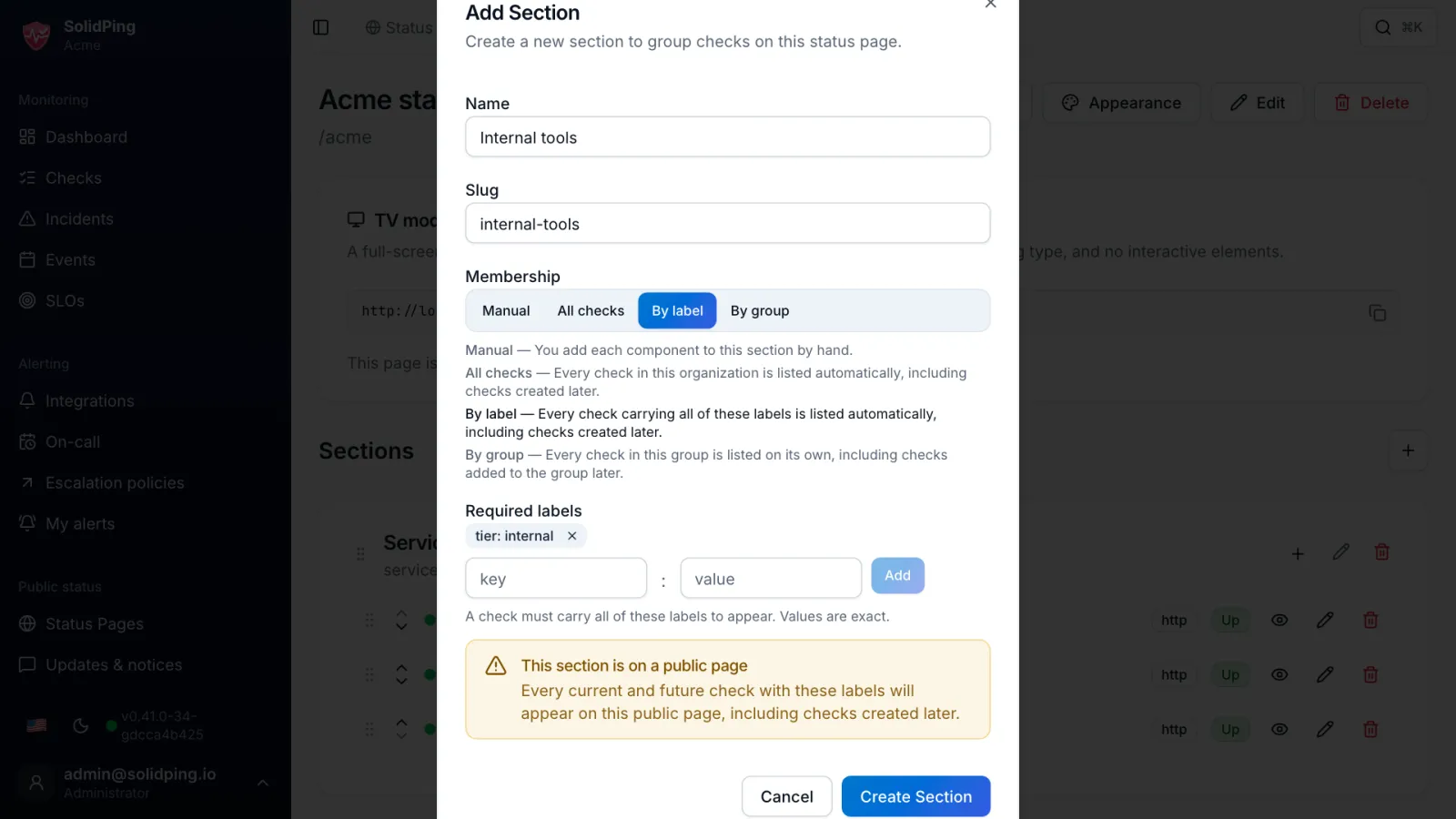
Change the membership to By label, or to All checks or By group. New matching checks then appear on their own.
Open the public page
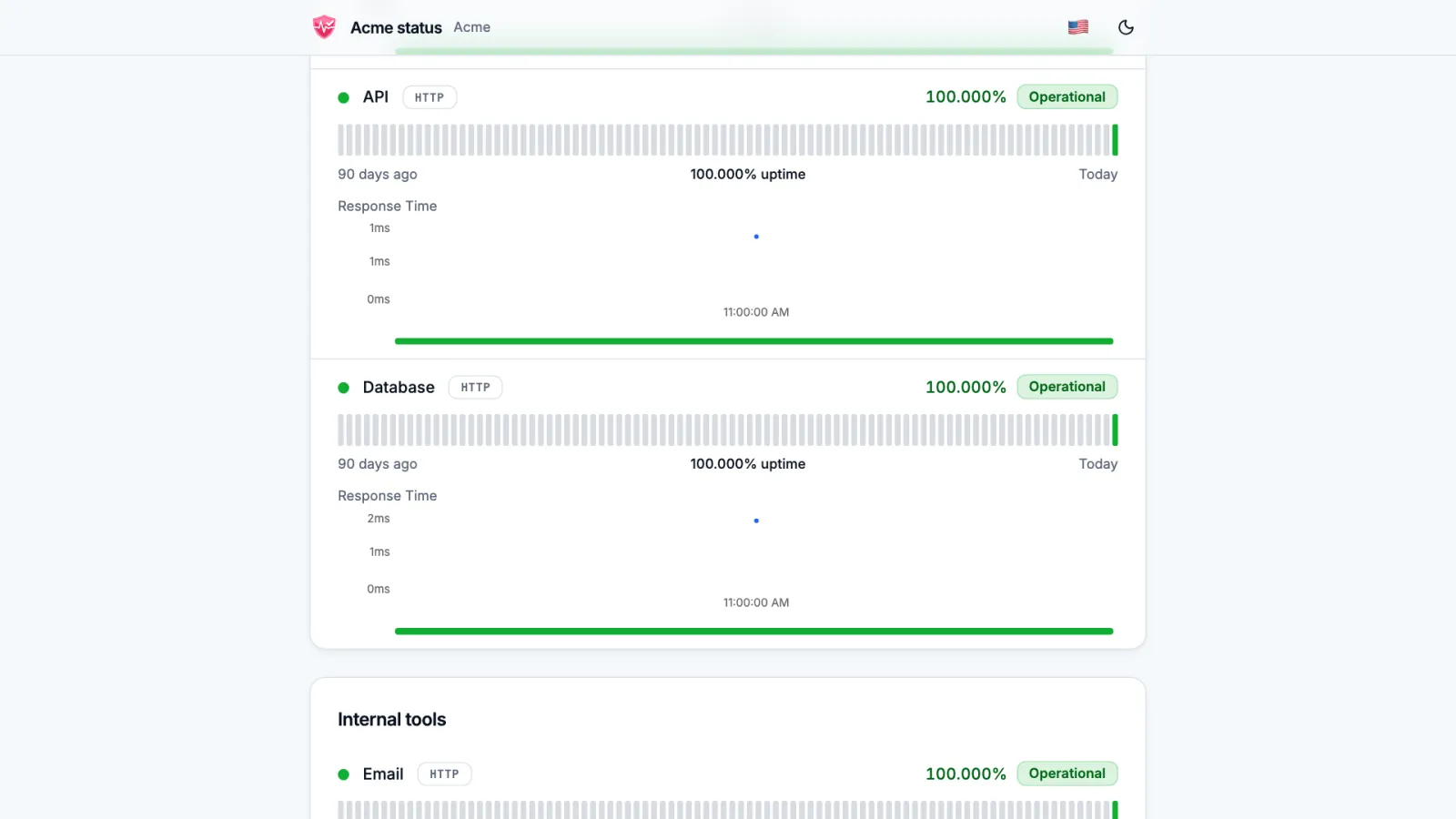
The public URL needs no login. Visitors see the state of each component, the uptime bars over the history window and the recent incidents.
Watch it turn red
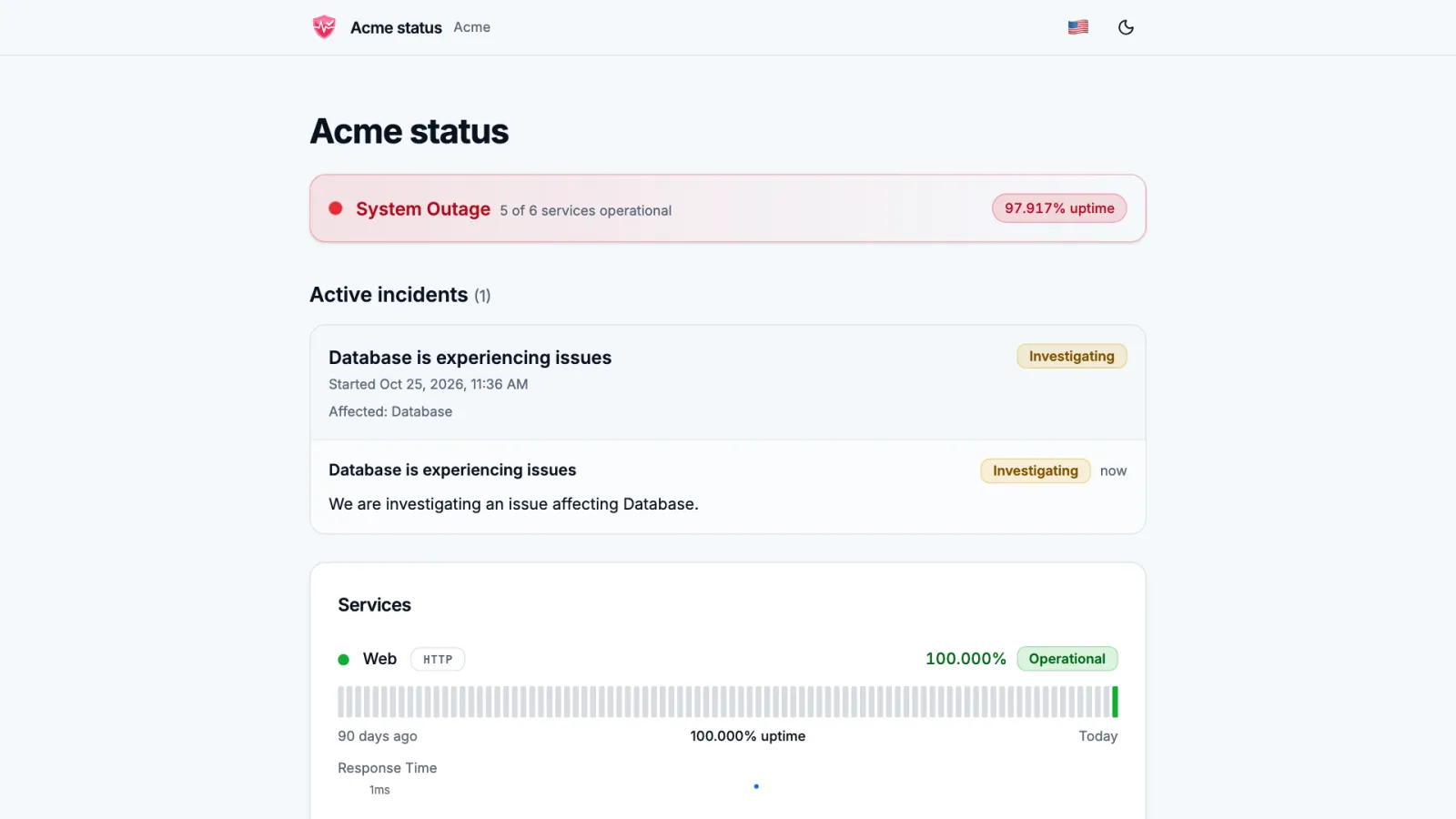
When a check fails, the page reflects it. A published group shows as a single component, which keeps your internal topology private.
Post an update
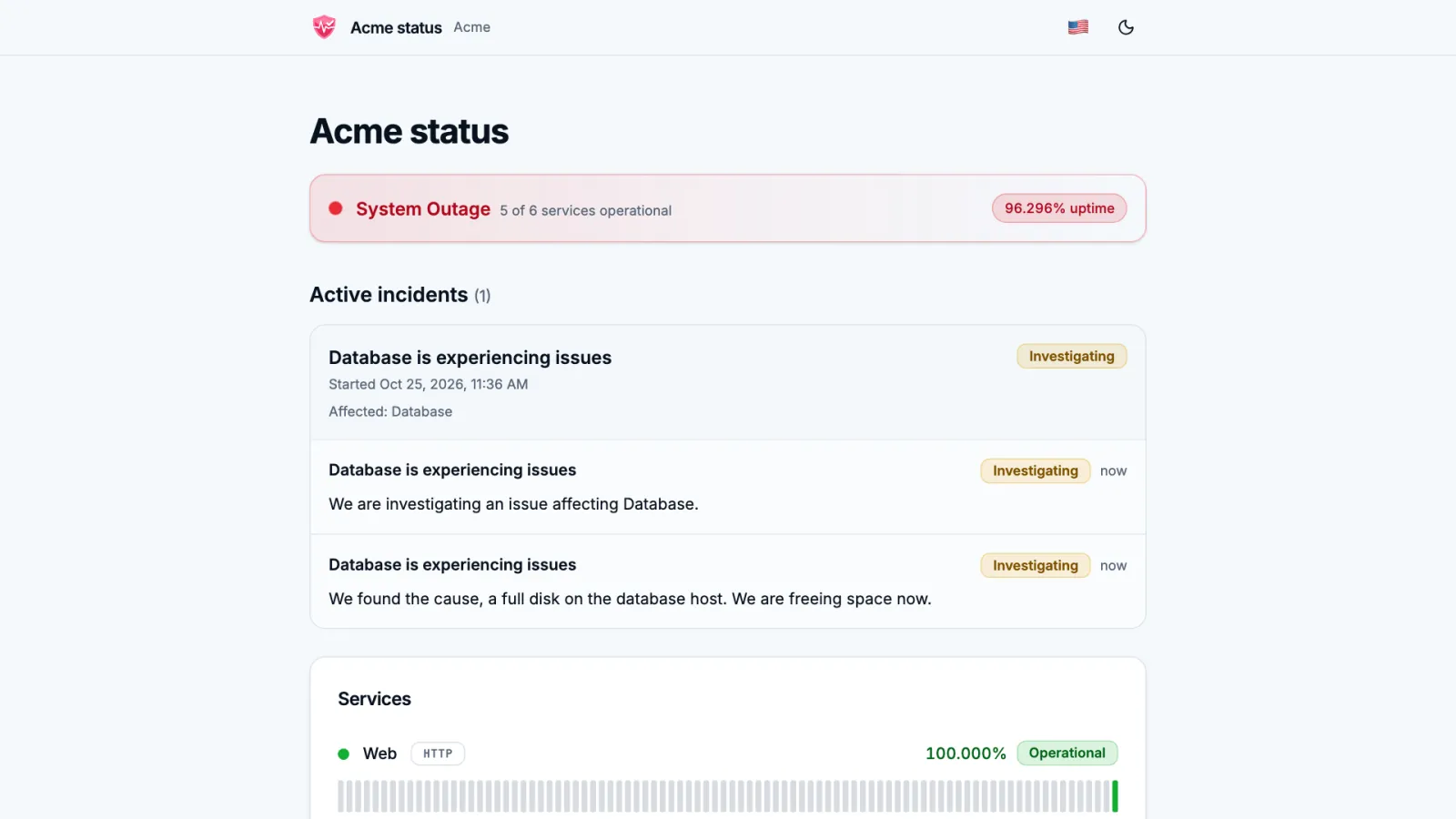
Post an update on the incident to tell visitors what you are doing about it. Automatic inclusion is a disclosure decision, so choose it with care.