6. SolidPing in Slack: one thread per incident
DocumentationDuring an outage, the worst place to look for context is five different messages in a channel. SolidPing keeps one Slack thread per incident.
In this video you connect Slack, attach a channel to a check, and watch an incident open as a message with an Acknowledge button. You acknowledge it from Slack, add a comment with the slash comment command, and see the recovery posted in the same thread. Comments written in the dashboard are posted as replies in the thread too.
Steps
Connect Slack
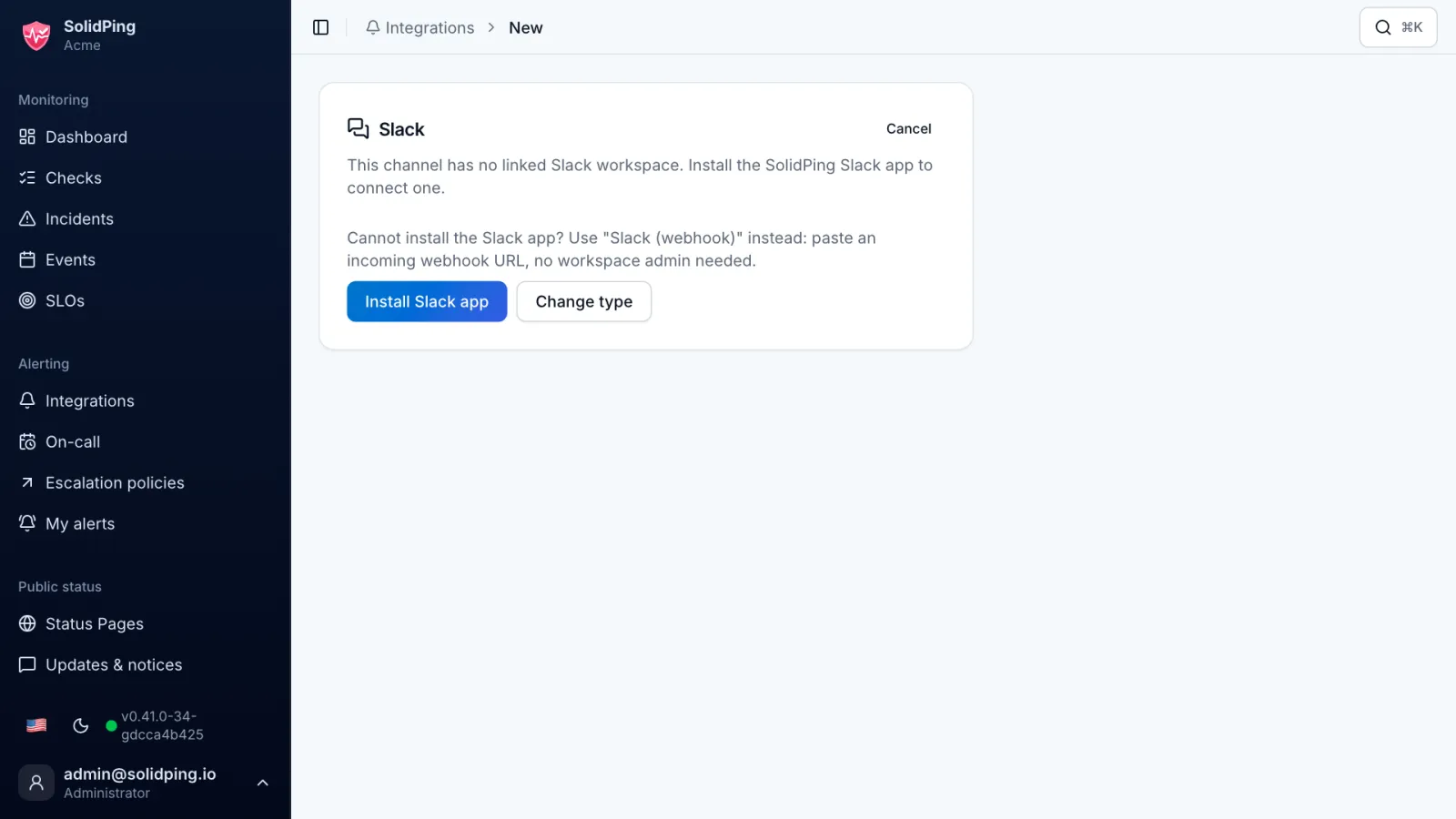
On the Integrations page, connect Slack. SolidPing uses the standard OAuth flow, and you pick the channel that receives alerts.
Attach the channel to a check
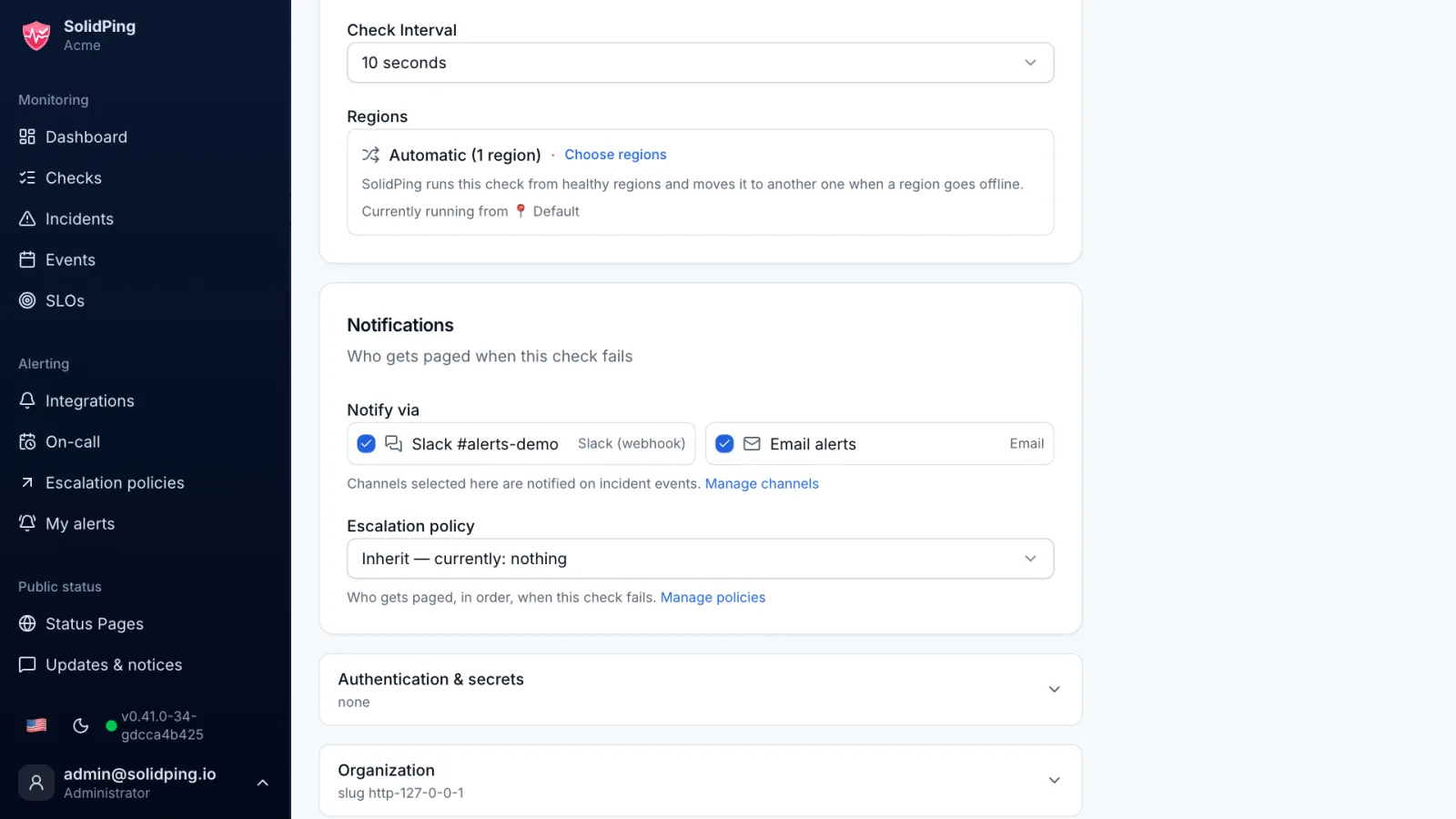
Attach the Slack channel to a check or to a group of checks. From now on, their incidents go to Slack.
The incident message
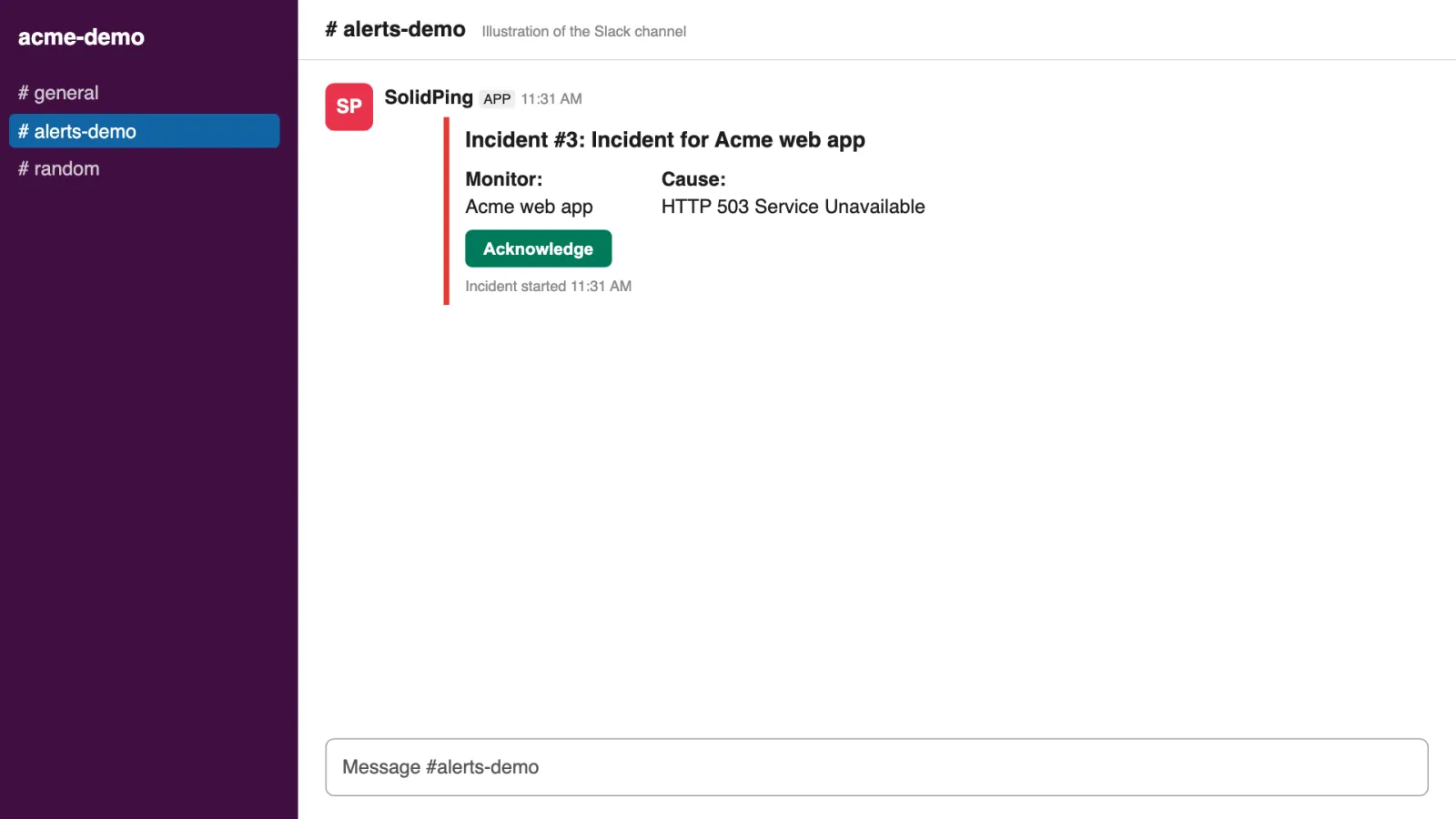
When the check fails and the incident opens, SolidPing posts one message in the channel, with the incident number, the check and the error.
Acknowledge from Slack
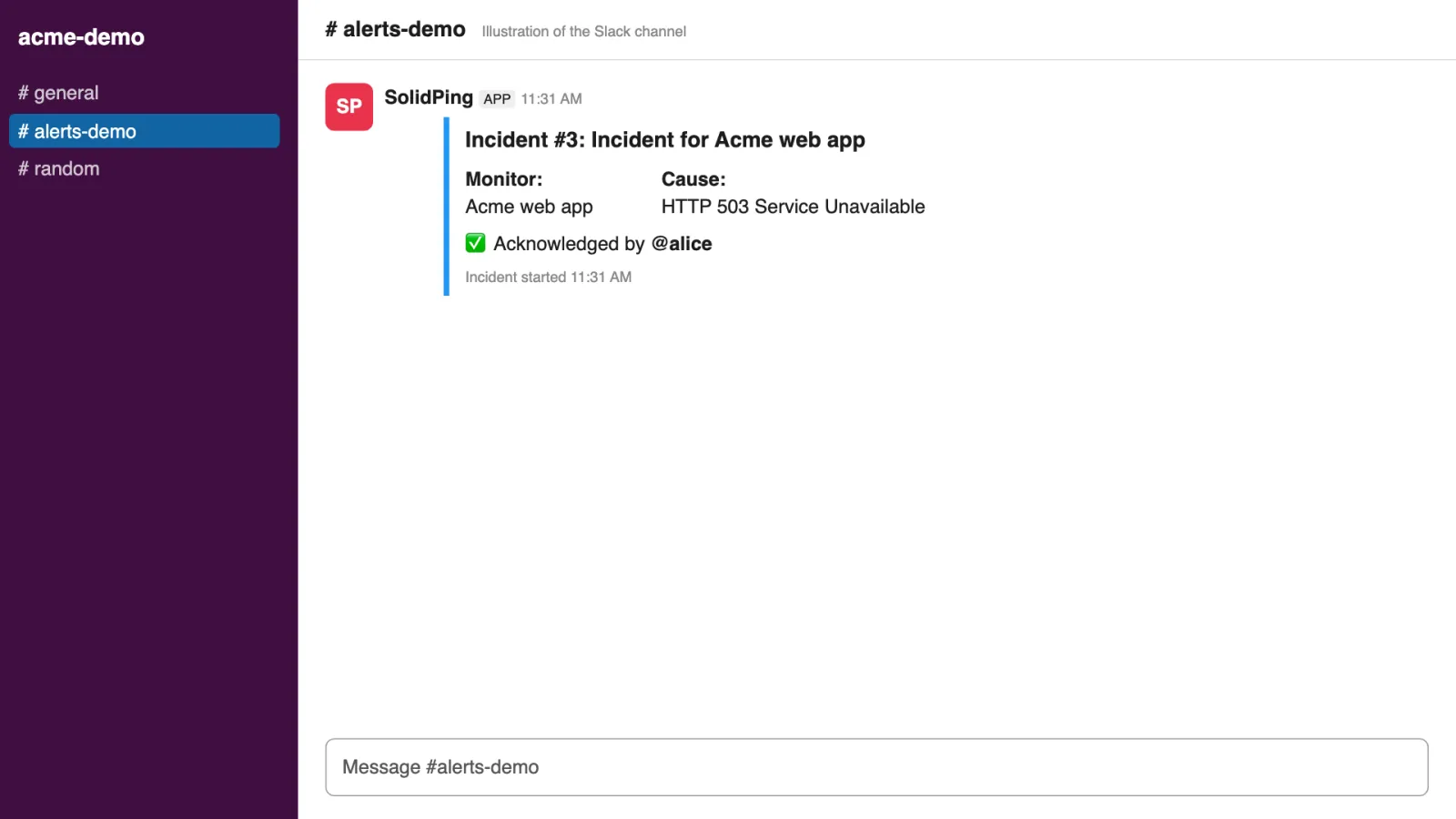
Click Acknowledge on the message. The incident is acknowledged and any pending escalation stops.
Comment in the thread
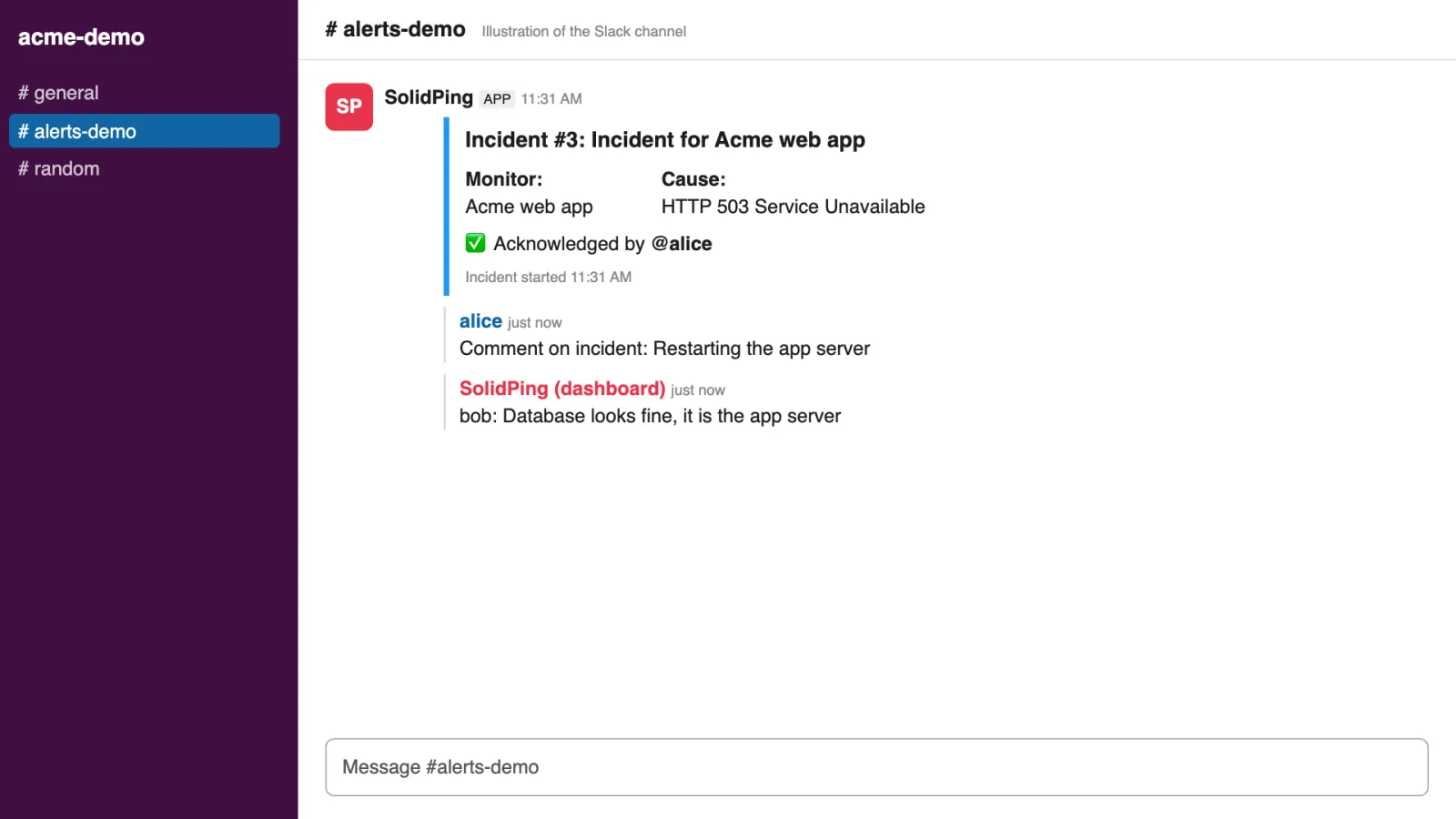
Type /comment #1 followed by a note to add it to the incident. Comments written in the dashboard show up as replies in the same thread.
The resolution in the same thread
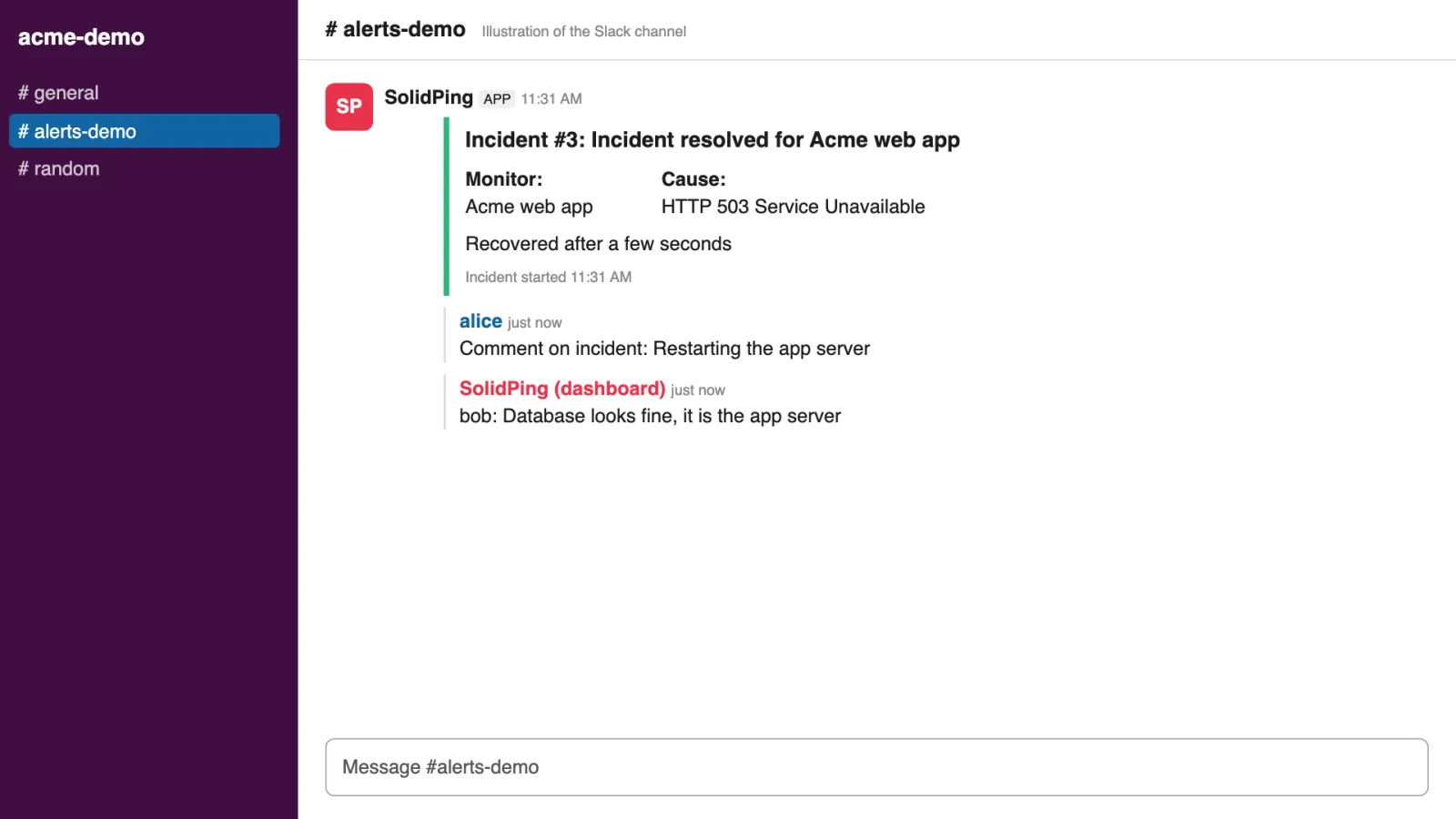
When the check recovers, the resolution is posted in the same thread. One incident, one thread, and the whole story stays together.