4. SolidPing RDP checks: is Remote Desktop really answering?
DocumentationA TCP check on port 3389 only proves that a port is open. The RDP check performs the pre-authentication Remote Desktop handshake, so a valid answer proves that the service really parsed the request.
In this video you create an RDP check, run it, read the negotiated security protocol (TLS, NLA and so on) and the server certificate expiry, then stop the service to see the check go down and an incident open. No credentials are needed and nothing is logged in, so your Windows event logs are not filled with authentication failures.
RDP hosts are usually private: run the check from a worker or private agent that can reach them.
Steps
Create an RDP check
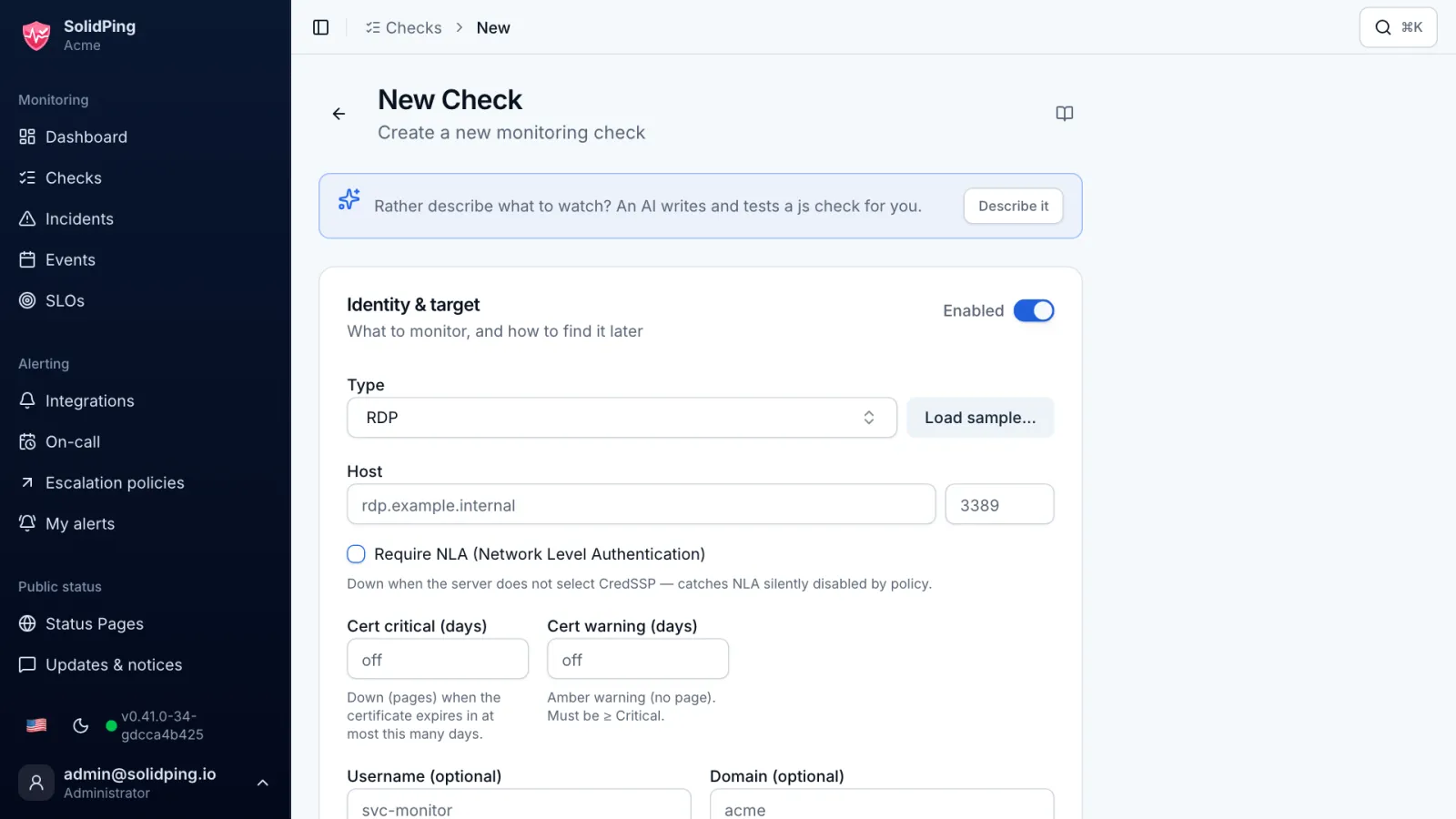
Click New Check and choose the RDP type. Unlike a port 3389 check, it performs the real Remote Desktop negotiation handshake.
Enter the host and port
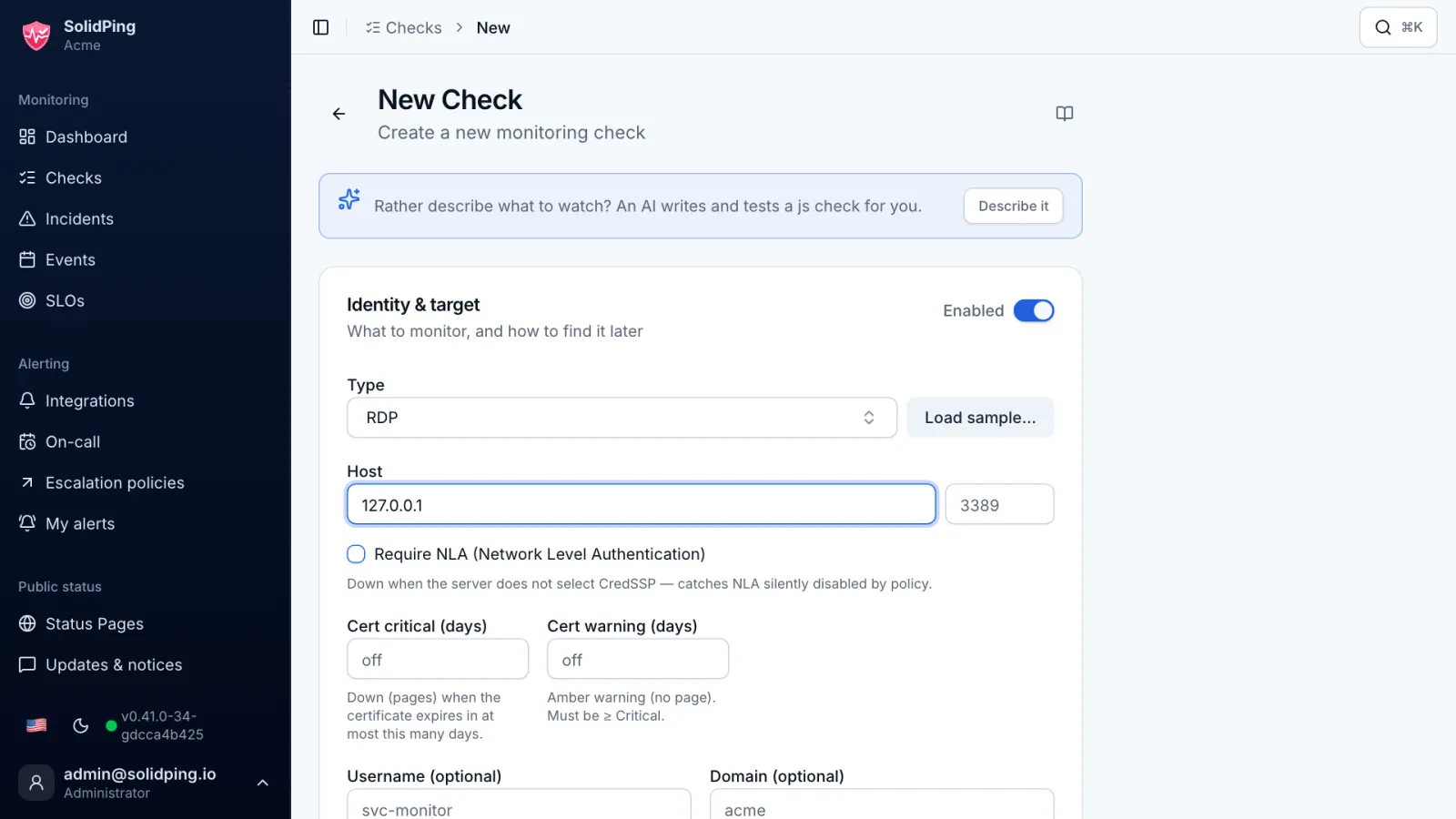
Fill in the host and port 3389. No username and no password: the handshake stops before any authentication.
Run it
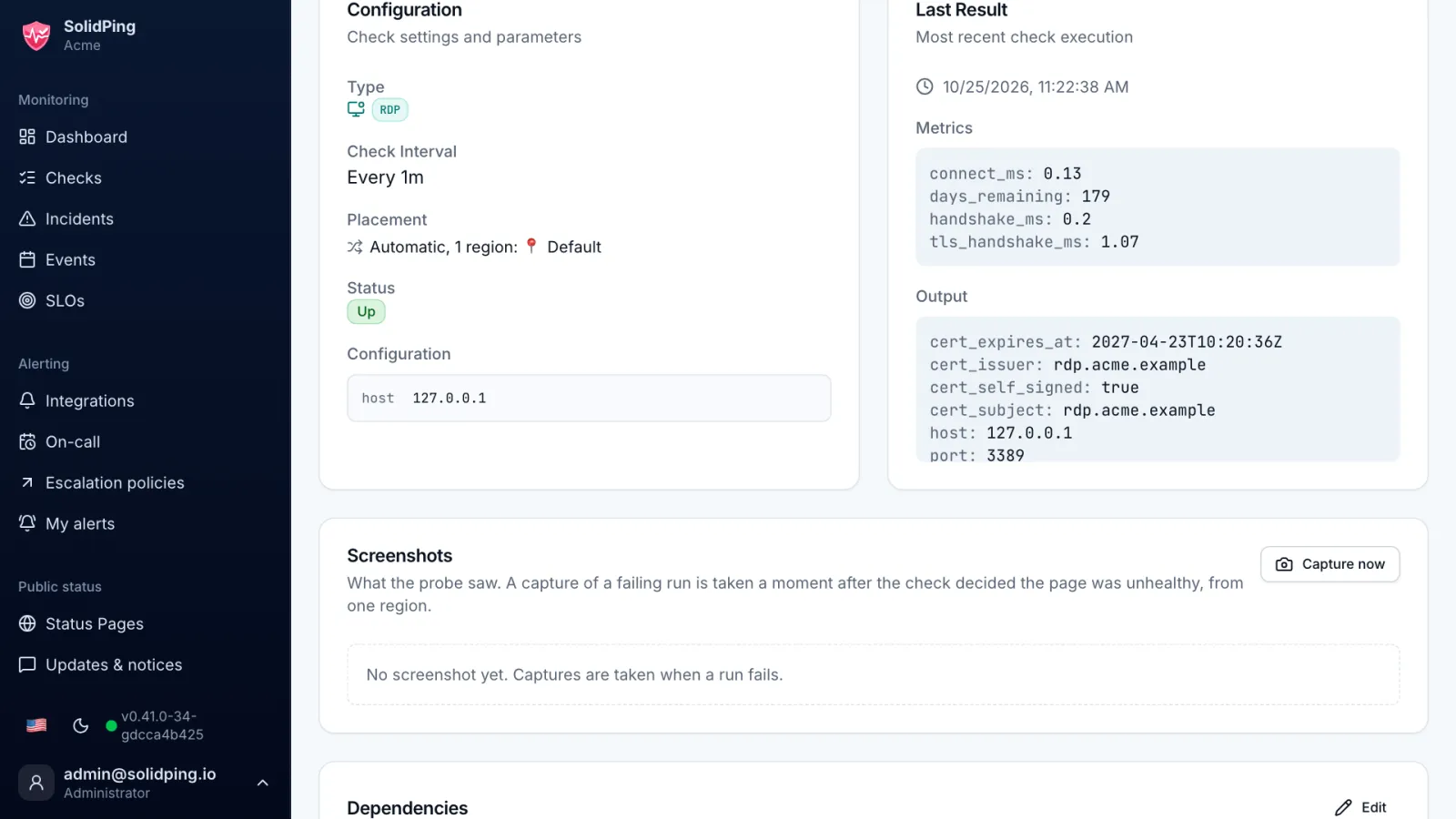
Click Run now. A valid answer proves the Remote Desktop service parsed the request, and the output shows the negotiated security protocol, such as TLS or NLA.
Read the certificate
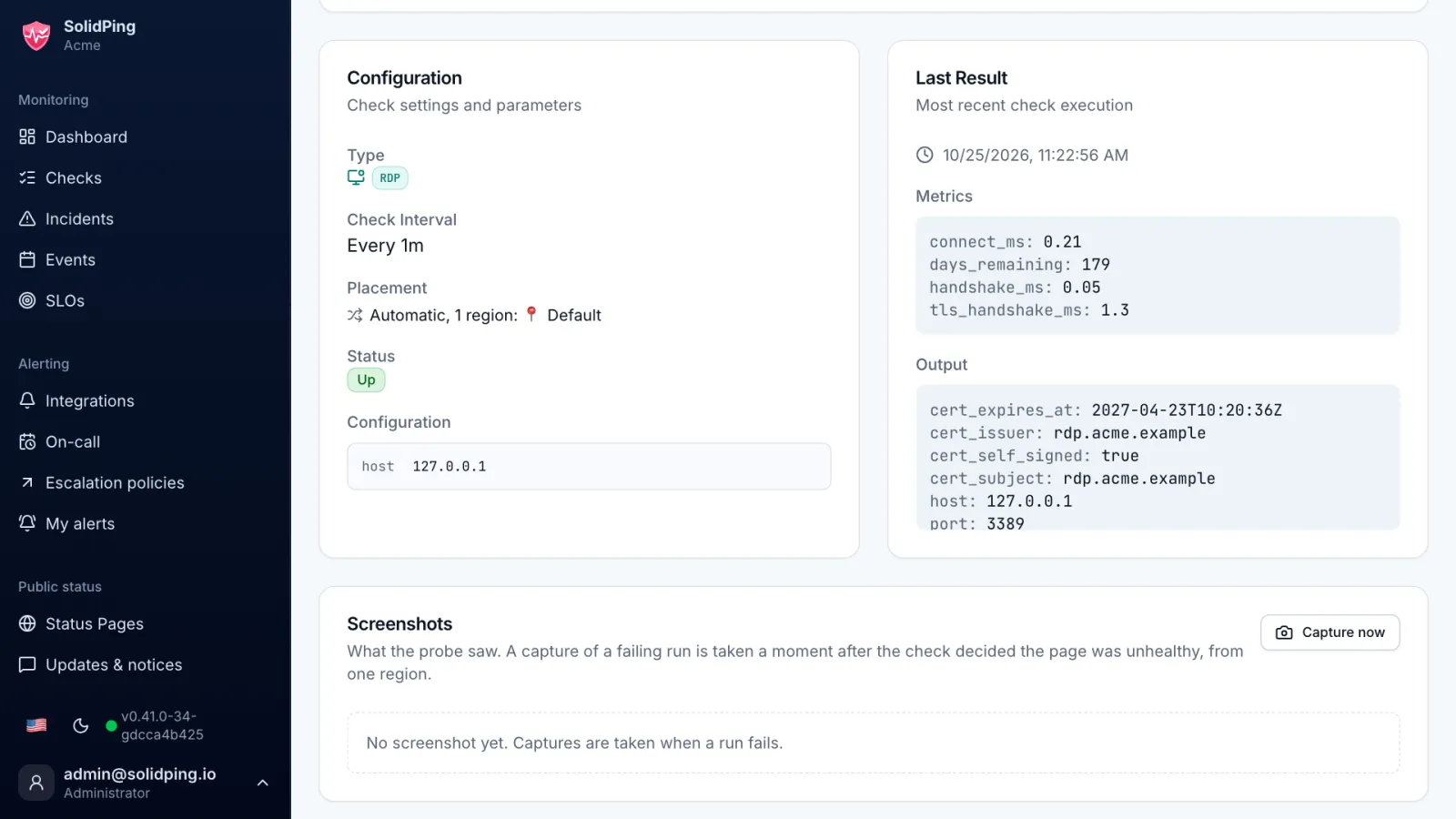
With TLS, the check also reads the server certificate and fails if it has expired. The chain is not validated, because RDP certificates are often self-signed.
Catch a stopped service
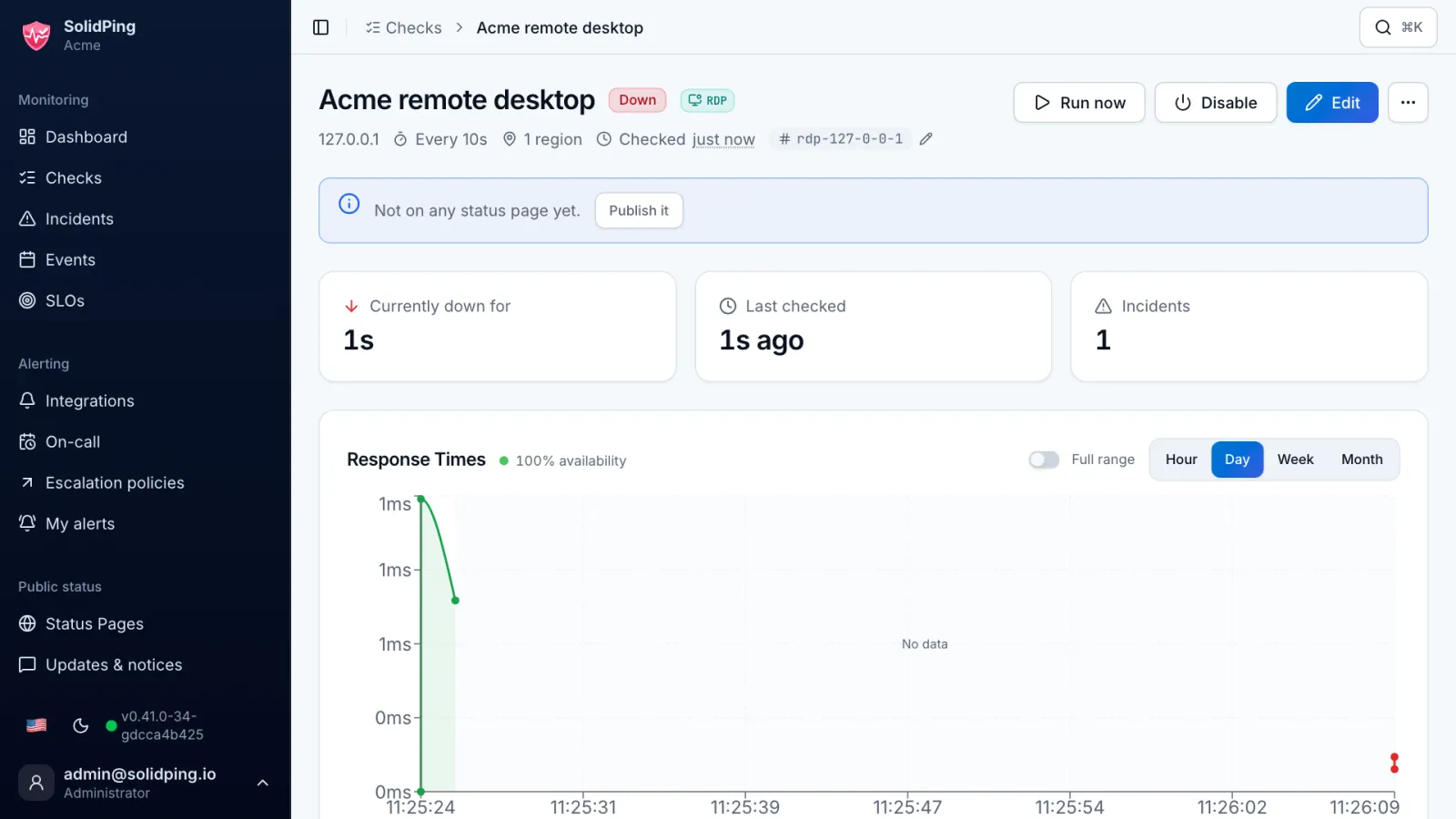
Stop the service on the server and run again. The check fails and SolidPing opens an incident, where a bare port check could have stayed green.
Pick a region that reaches the host
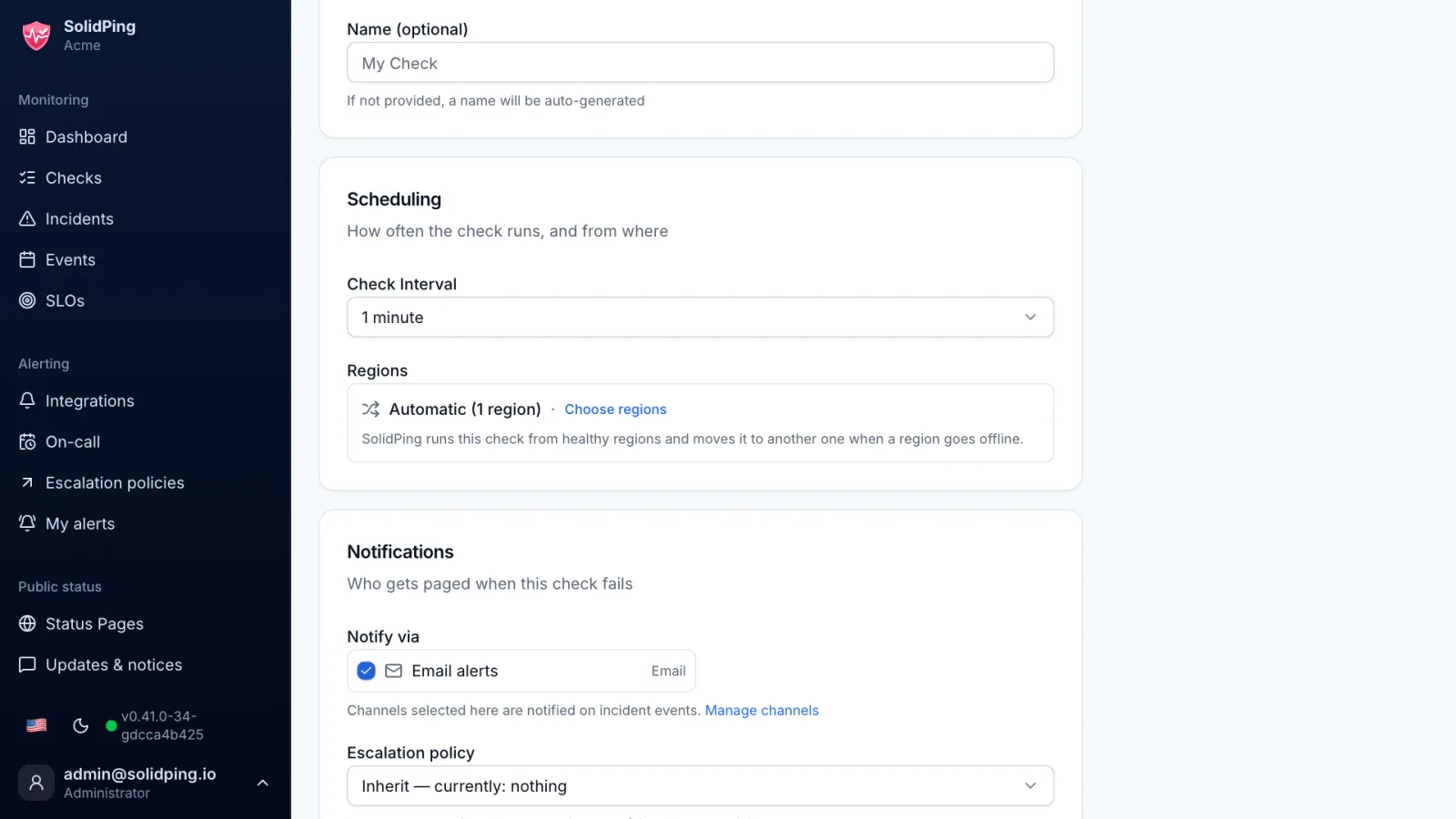
RDP hosts are usually private, so pick a worker or a private location that can reach them. Nothing logs in, so your Windows event logs stay clean.